
Social Alerts are here: YouTube, Twitch and Kick in your Discord server
Post to your Discord server the moment a video drops or a stream goes live. Follow YouTube, Twitch, Kick, Bluesky, podcasts and RSS feeds, no code needed.
Md Shahriyar Alam
19 days ago
Your community should not have to find out you went live from someone else. Today we are adding Social Alerts to Custom Commands. Pick a channel, pick where to post, and your Discord server hears about every new video, stream and post on its own.
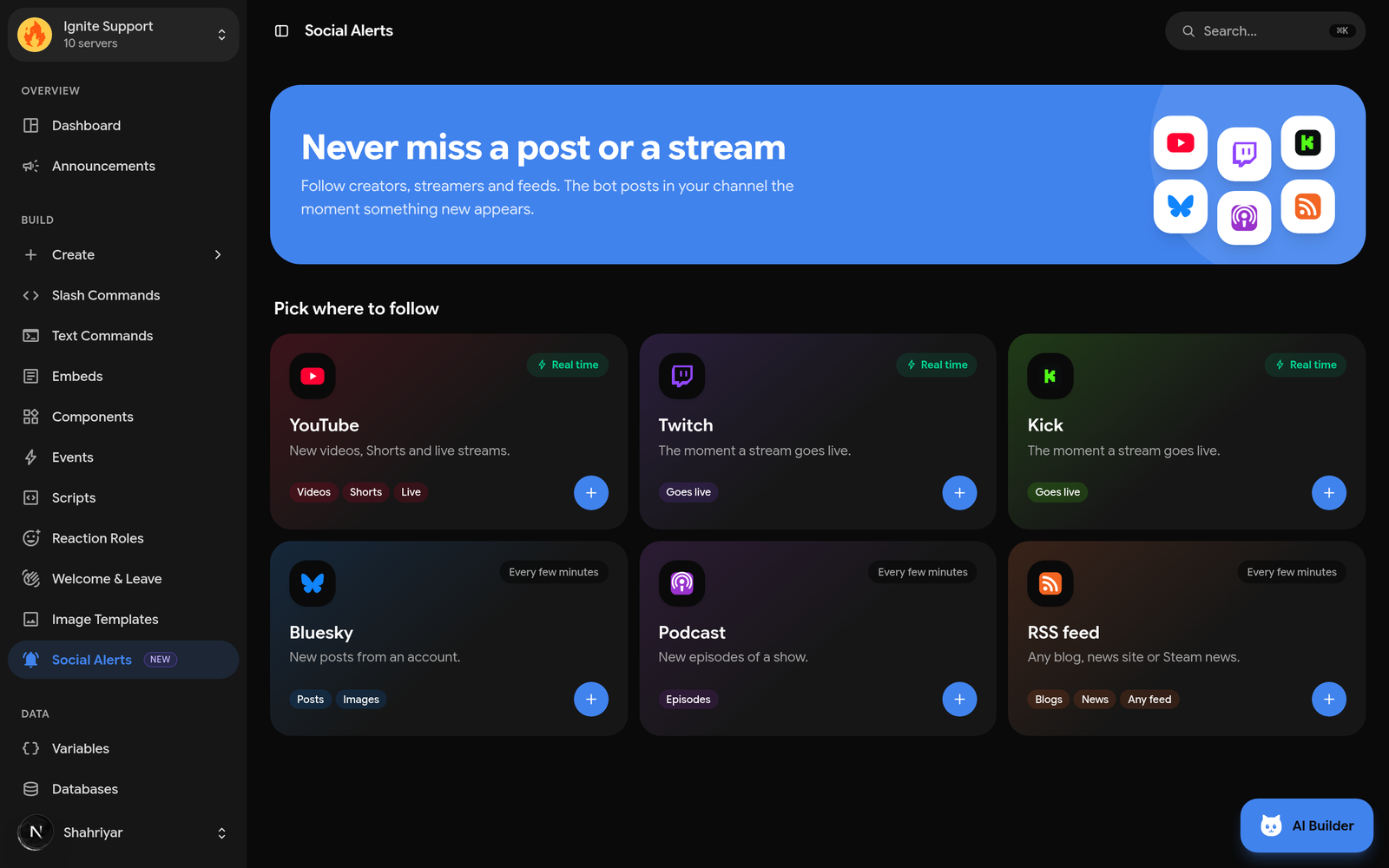
What you can follow
- YouTube: new videos, Shorts and live streams
- Twitch: the moment a stream starts
- Kick: the moment a stream starts
- Bluesky: new posts from any account
- Podcasts: new episodes of any show
- RSS feeds: blogs, news sites, Steam game news and anything else with a feed
You can follow your own channels, a friend's, or the creators your community loves. It does not have to be your account.
Fast, and only once
YouTube, Twitch and Kick tell us when something happens, so there is no waiting for the next check. Twitch and Kick alerts usually land within seconds. YouTube can take a minute or two, because that is how long YouTube takes to send the update.
Bluesky, podcasts and RSS feeds are checked every few minutes.
Every video and every stream is posted once. If a platform sends the same update twice, your server still sees one post.
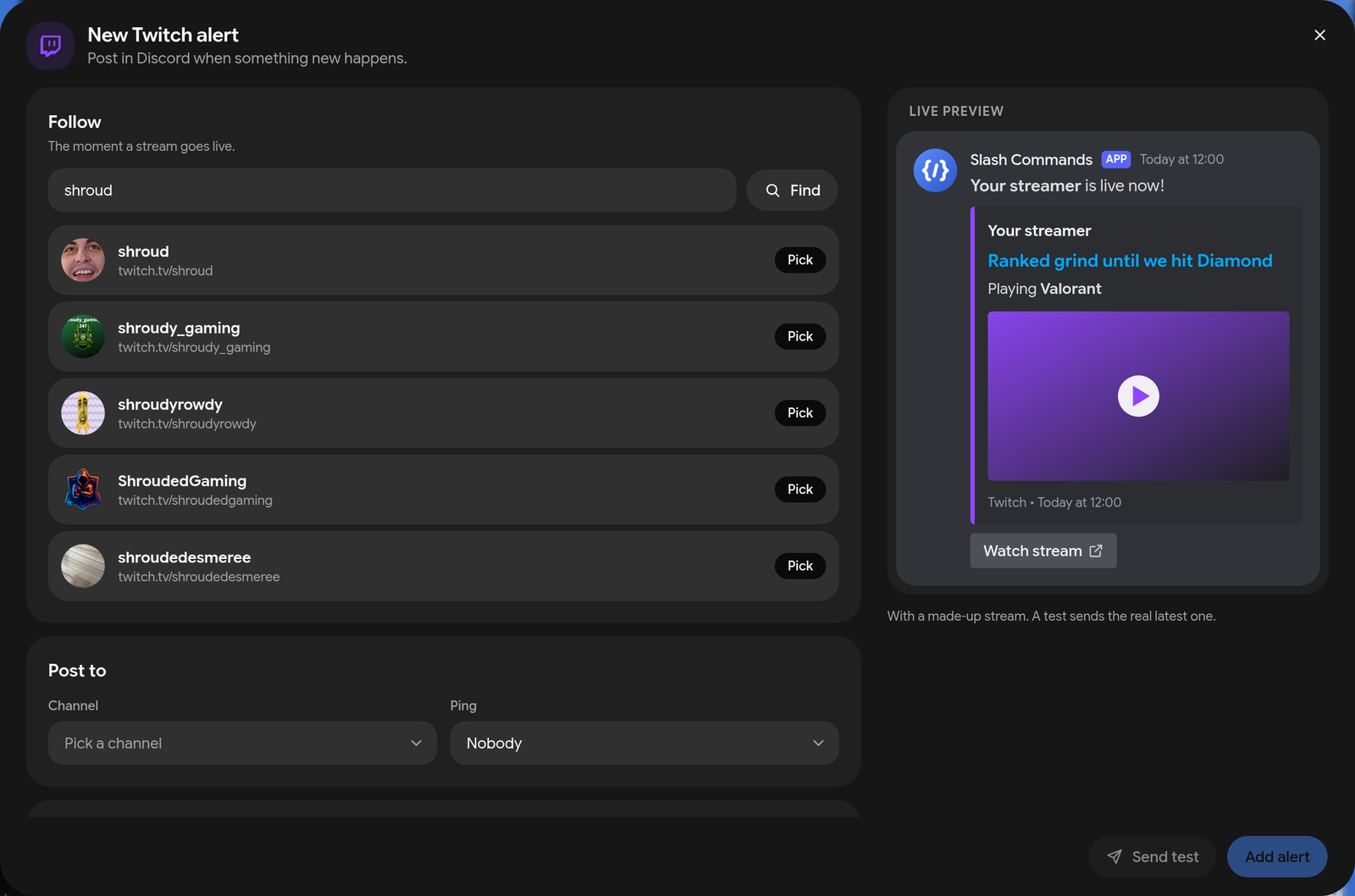
Find a channel by name
You do not need to hunt for channel IDs. Type a name and pick the right one from the list. Each result shows its picture, so you can tell the real channel from the copies. A link or an @handle works too.
Make the post your own
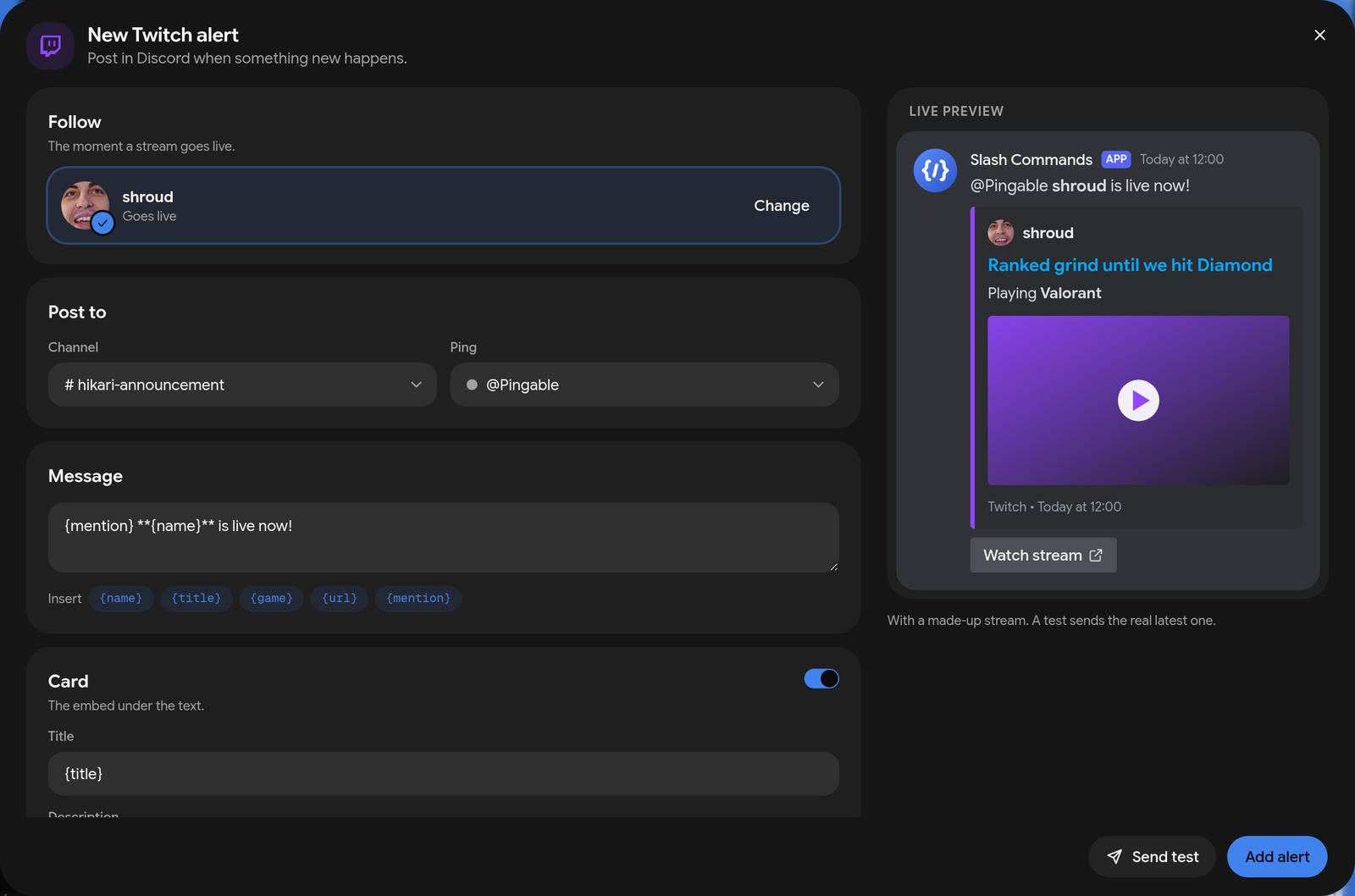
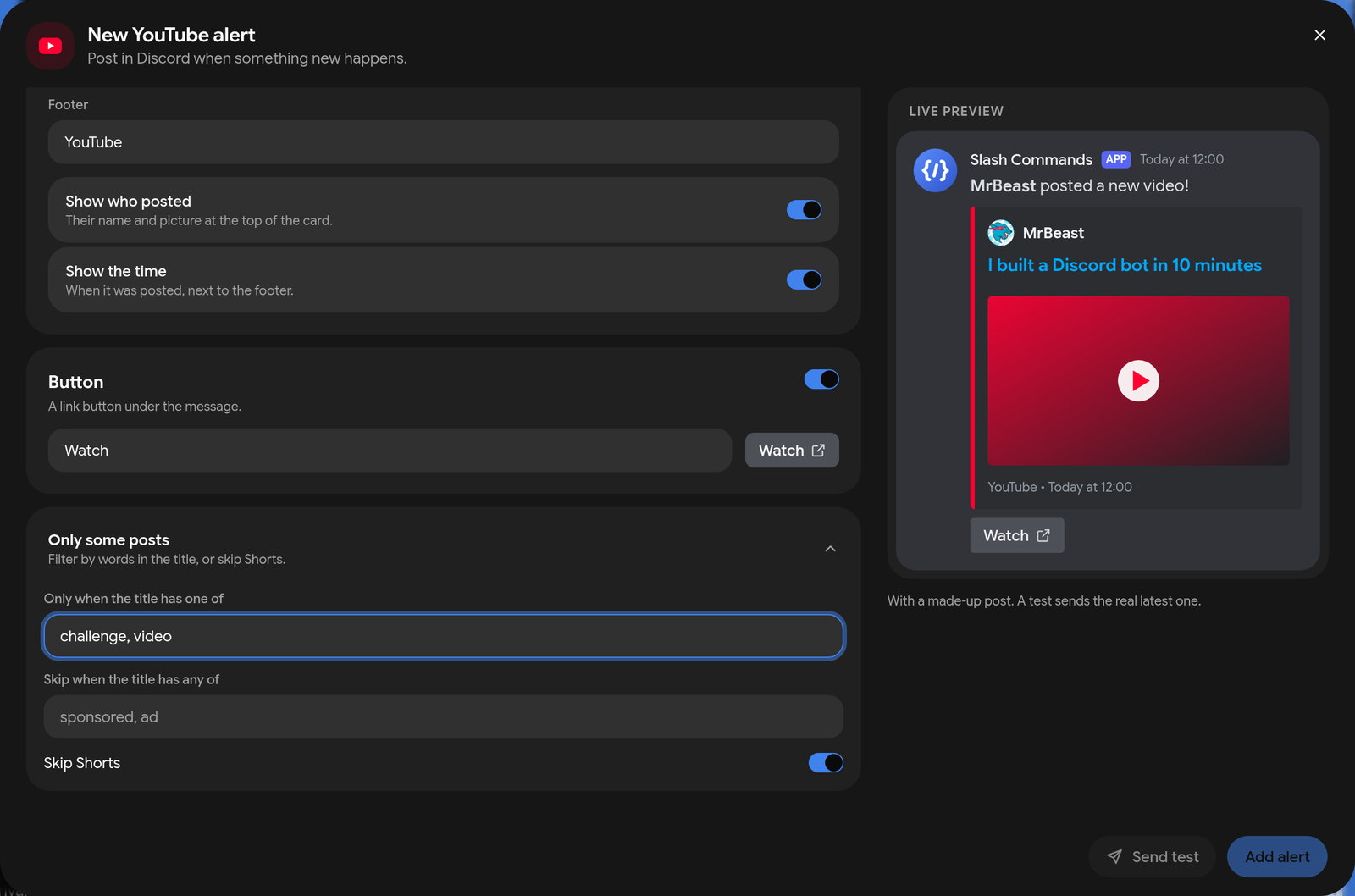
Every alert comes ready to go, and you can change all of it:
- The message: write your own text with placeholders like
{name},{title},{url}and{mention} - Ping a role: mention @Live, @Subscribers or any role, or post without a ping
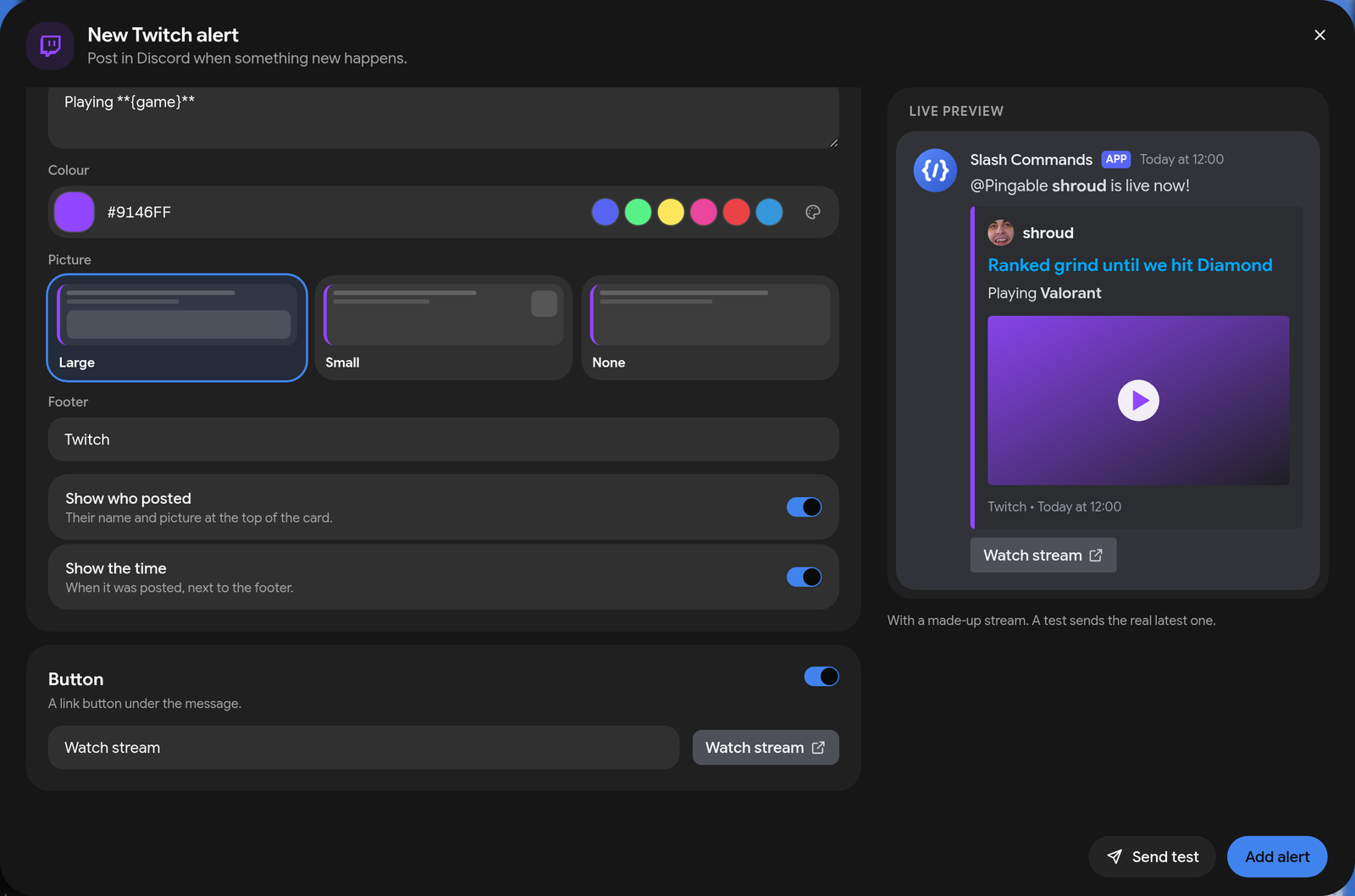
- The card: change the colour, show a large or small picture, or turn the card off
- The button: rename the "Watch" button to anything you like
- Skip Shorts: only post full videos and streams from a YouTube channel
- Word filters: only post when the title has certain words, or skip titles with others
Before you save, press Send test to send a sample post to your channel and see exactly what members will see.
How to set it up
- Open the dashboard at
ccbot.app and pick your server.
- Go to Build, then Social Alerts.
- Pick a platform and search for the channel or streamer.
- Choose the Discord channel to post in, and a role to ping if you want one.
- Save. That is it.
You can pause any alert with its switch and turn it back on later. Your settings stay as they were.
Plans
Social Alerts are part of Premium:
| Plan | Alerts per server |
|---|---|
| Starter | 3 |
| Basic | 5 |
| Advanced | 10 |
Starter begins at $1.99 a month. If your plan ends, your alerts are paused, not deleted. Renew and switch them back on with the same settings.
Try it
Social Alerts are live now for every Premium server. Open Social Alerts to see how it looks, or go straight to your
dashboard and add your first alert.
Questions or ideas for a platform we should add next? Tell us in our support server.
Loading comments…